The Chat Widget
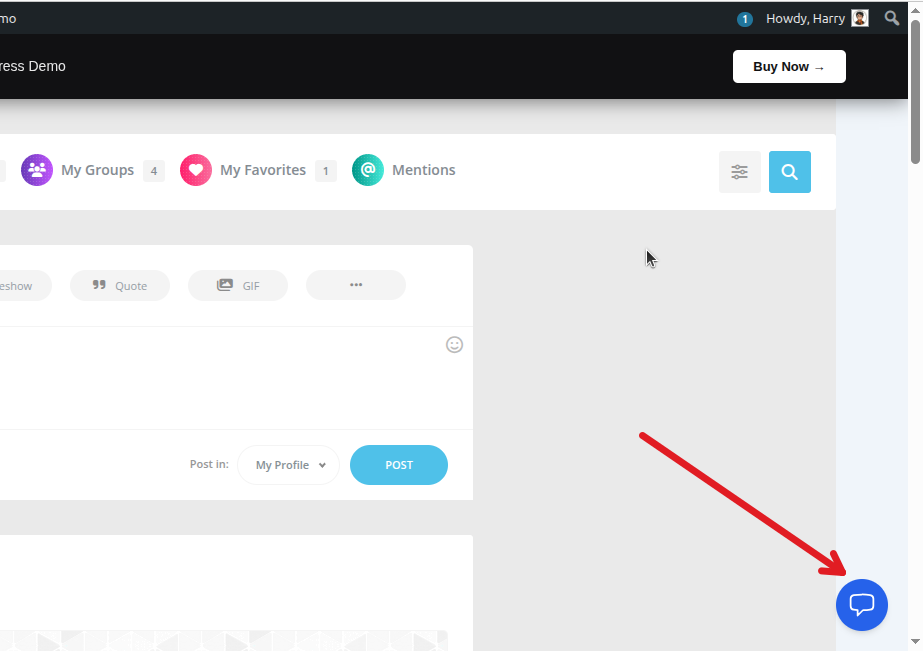
Once enabled, a chat bubble will appear at the bottom corner of your website for logged-in users. You may check demo of Private Messaging for BuddyPress.
Starting a Conversation
- Click the chat bubble to open the interface.
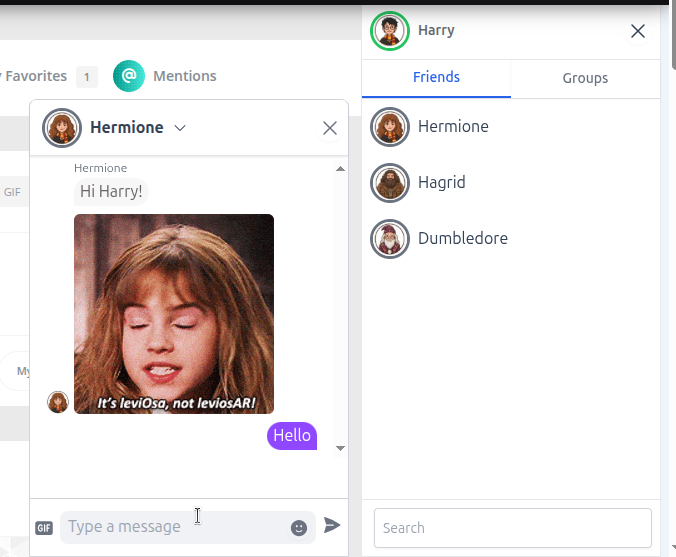
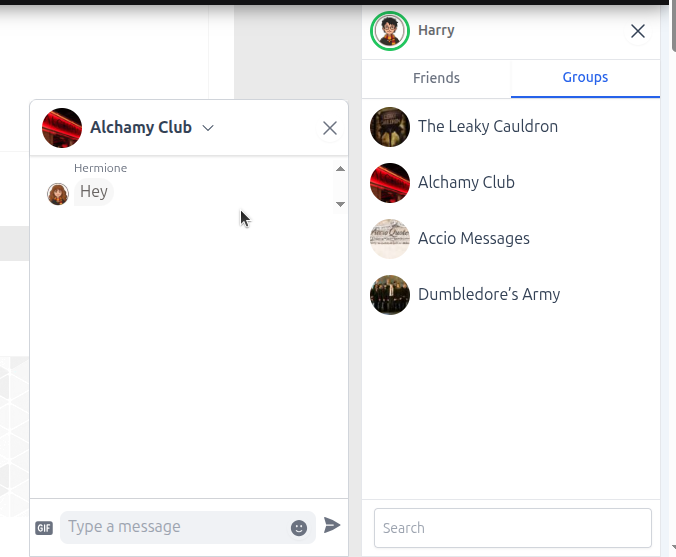
- Use the Search bar to find friends or groups.
- Click on a contact to start messaging.
Managing Conversations
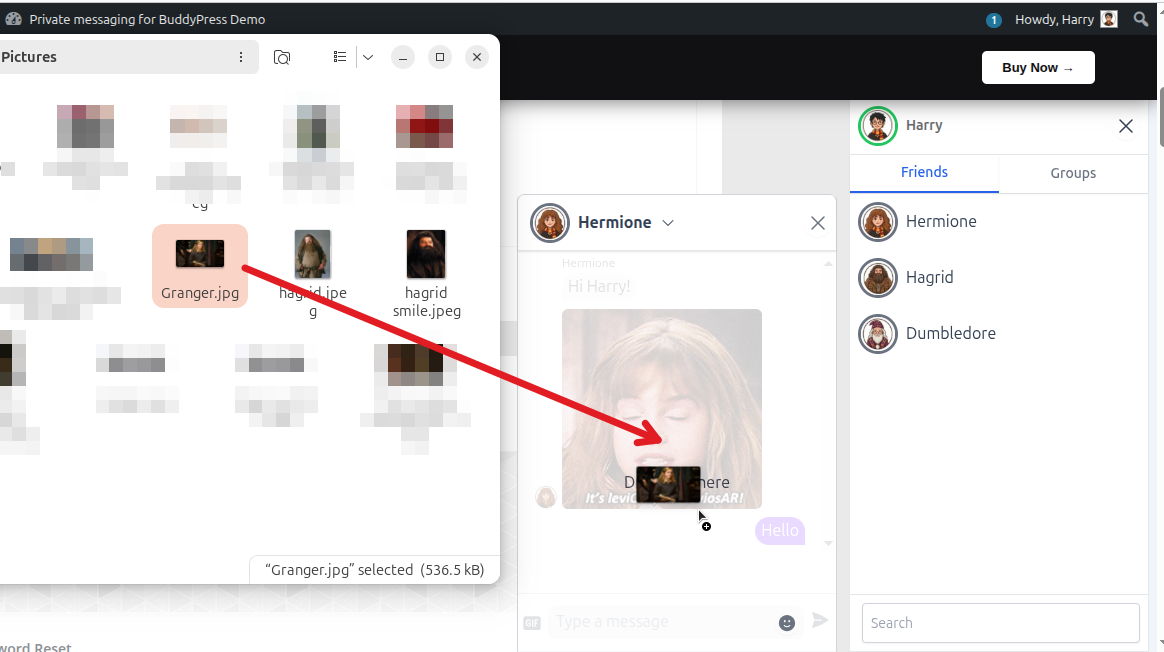
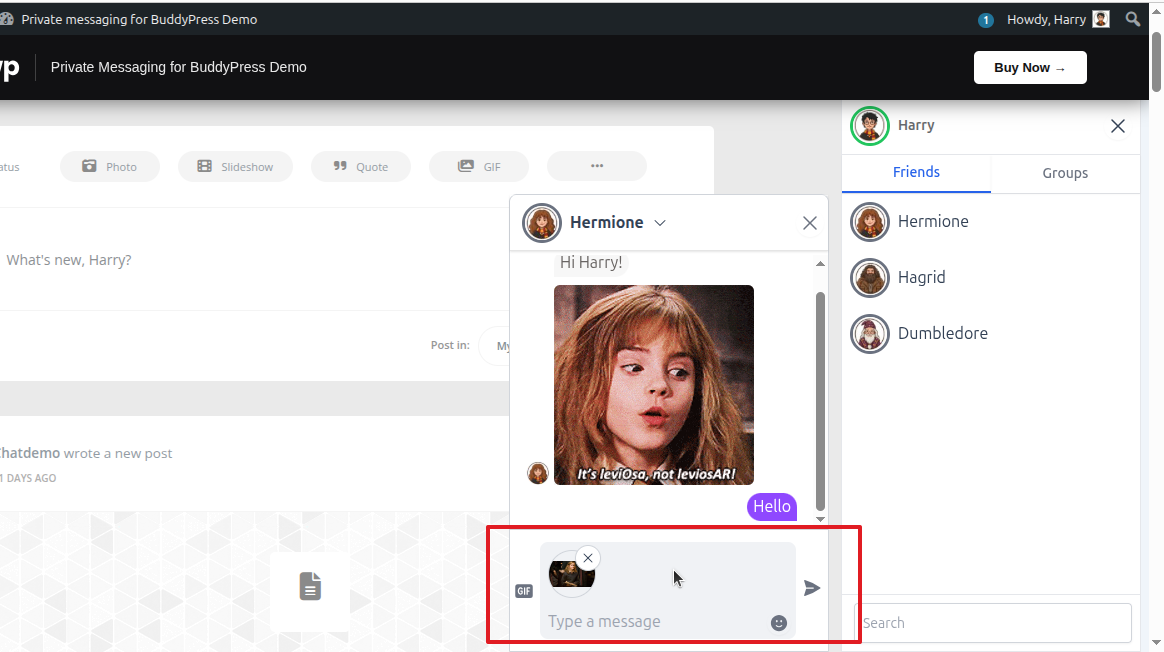
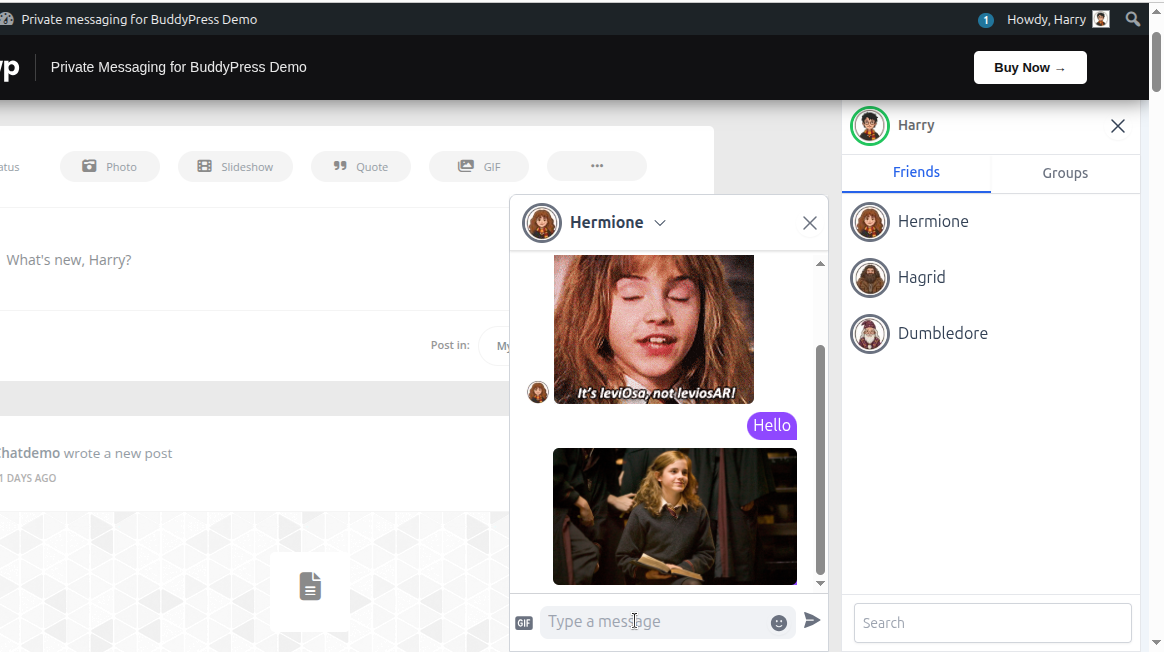
File Sharing: Drag and Drop File to the chat window to share file.
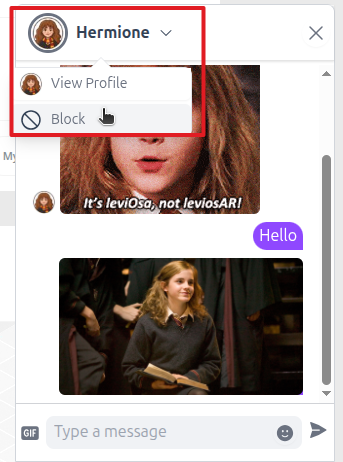
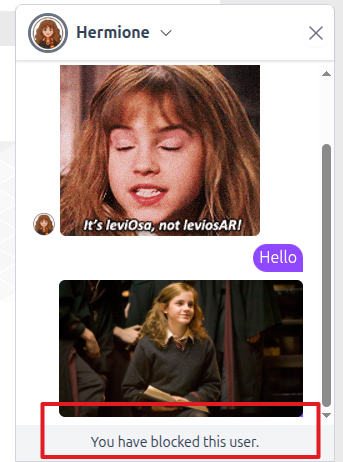
Blocking: Access the user’s profile or chat settings within the widget to block them if needed.
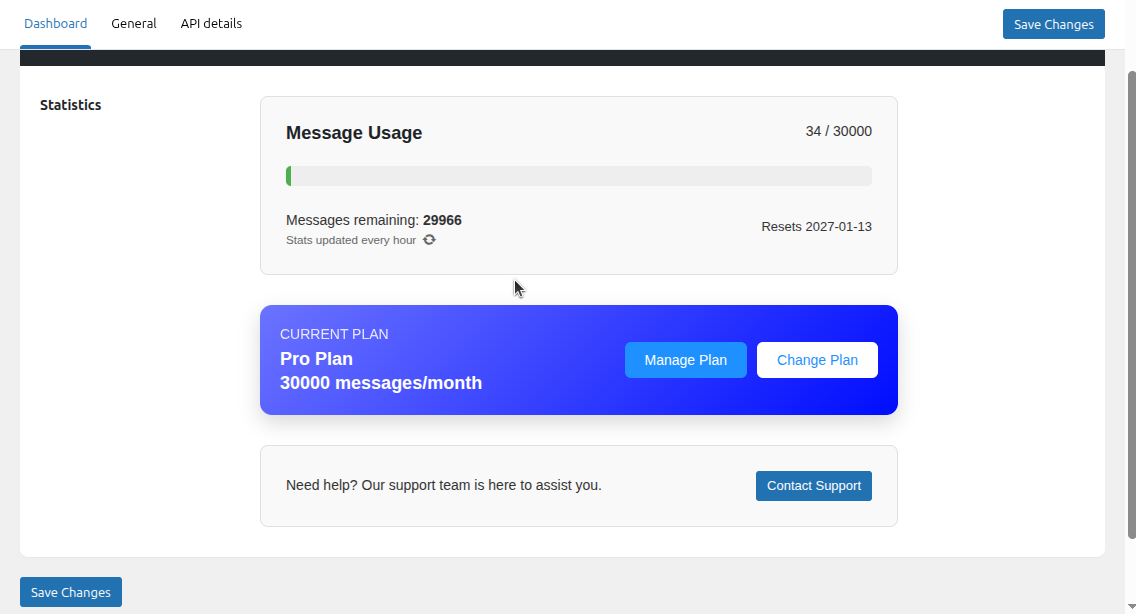
Admin Dashboard
Go to Private Messaging > Dashboard to view your account status and usage statistics. This area provides insights into active conversations and your current plan details.