When you contact us about a problem with a form, the quickest way for us to reproduce it is to load your exact form on our test site. Gravity Forms can save any form as a small .json file, and this guide shows you how to create one.
The export file holds only the form's setup: its fields, settings, conditional logic, notifications and confirmations. It does not include any entries or submitted data, so it's safe to send to us.
You'll need: access to your WordPress dashboard as an administrator.
Step 1: Open the Export Forms screen
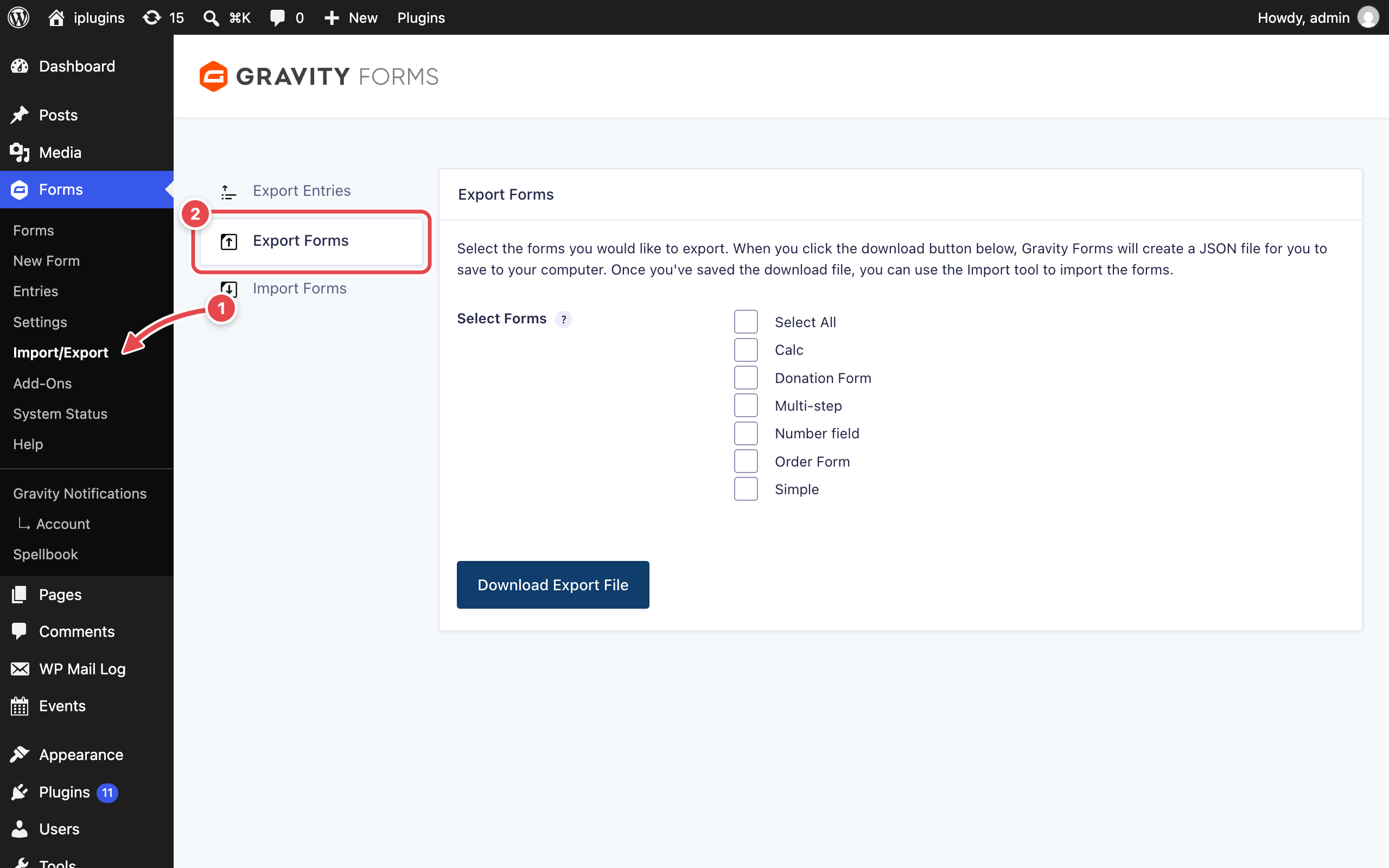
- In your WordPress dashboard, go to Forms → Import/Export.
- Click the Export Forms tab.
Step 2: Choose the form and download the file
- Tick the checkbox next to the form you want to export. To export several forms into one file, tick each of them, or use Select All to export every form.
- Click Download Export File.
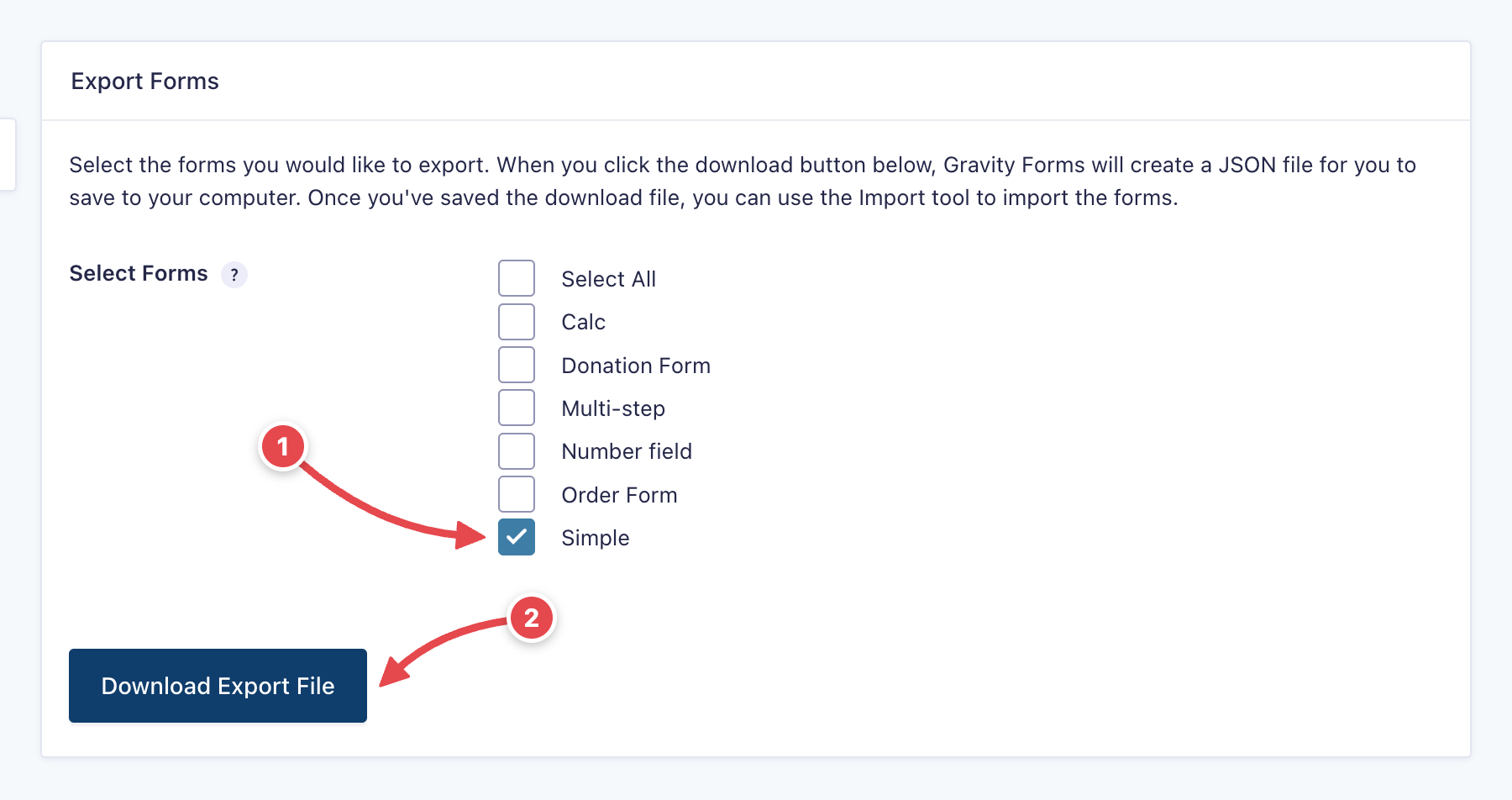
Your browser downloads a file named something like gravityforms-export-YYYY-MM-DD.json. Check your Downloads folder if you don't see a prompt.
Step 3: Send the file to us
Attach the .json file to your support ticket or email reply. If your mail service blocks .json attachments, put it in a .zip archive first.
Moving a form to another site
The same file works for copying a form between sites. On the other site, go to Forms → Import/Export → Import Forms, choose the .json file and click Import. Remember that only the form is copied, not its entries, and any add-on feeds (payment, email marketing and so on) may need to be reconnected on the new site.