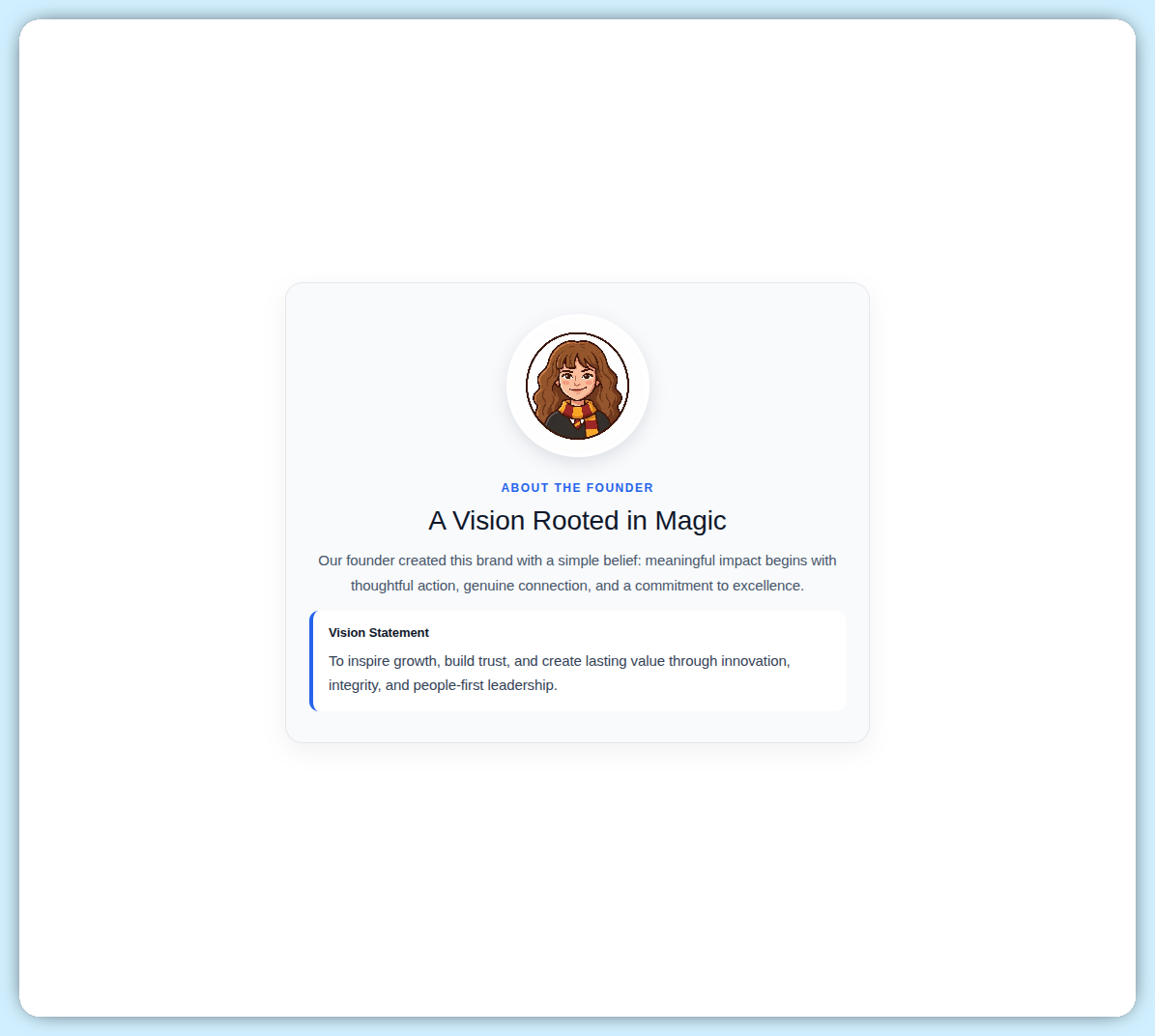
1. Installation & Setup Guide
- Install the Plugin
- Download the plugin ZIP file to your computer.
- Log in to your WordPress dashboard.
- Navigate to Plugins → Add New.
- Click on the Upload Plugin button at the top.
- Choose the downloaded ZIP file and click Install Now.
- After installation, click Activate to enable the plugin
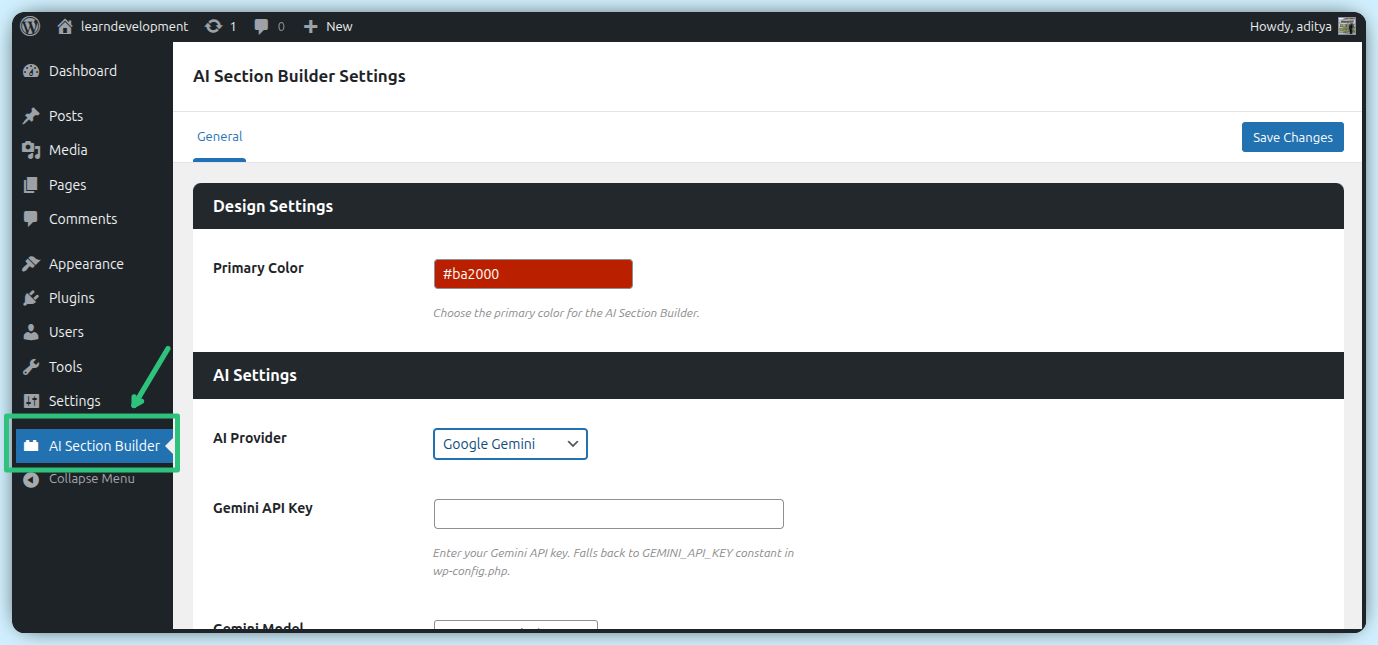
2. Configure AI Section Builder
Choose the Model you want to use.
- In your WordPress dashboard, open AI Section Builder from the menu.
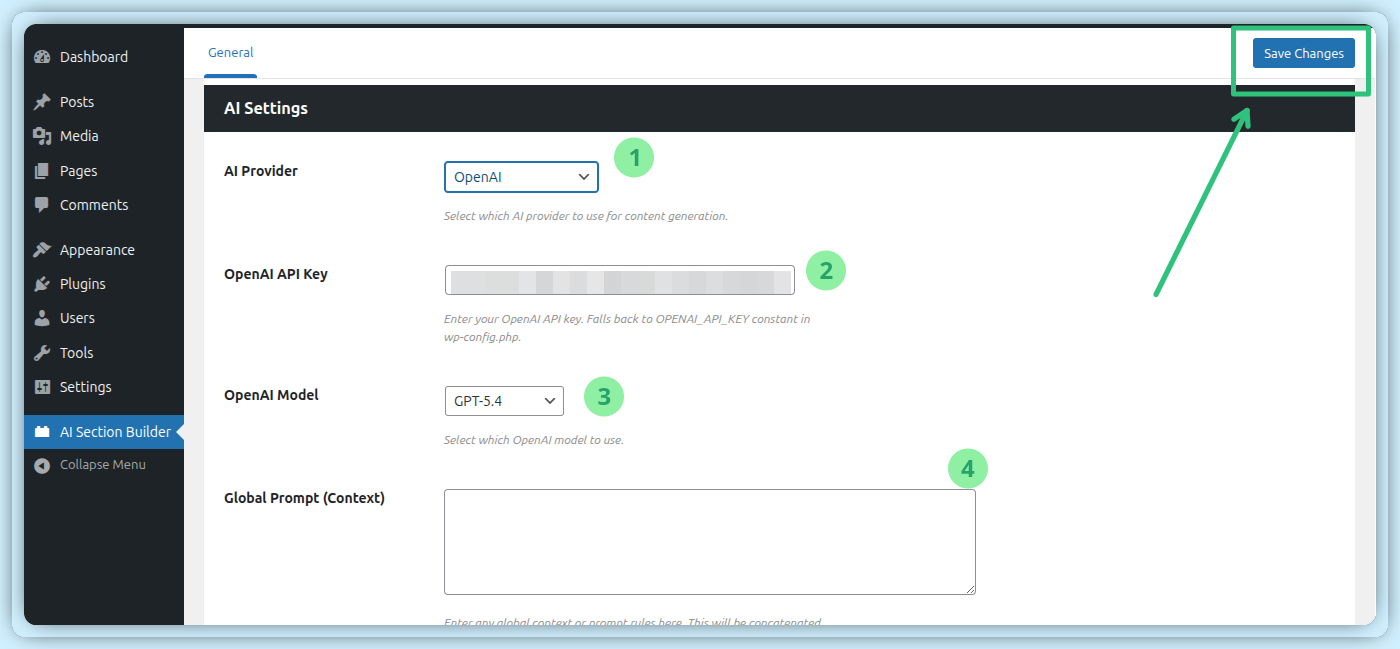
2. Go to the General Settings section.
3. Select your preferred AI Provider from the available options.
Supported providers include:
- OpenAI
- Gemini
- Anthropic Claude
- Local LLMs (if configured)
4. Enter your API Key for the selected provider.
5. Choose the Model you want to use.
3. Set a Global Prompt (Optional but Recommended)
You can define a Global Prompt that will be automatically combined with every section prompt you write.
- Example: “Act as a web designer for WordPress. Create responsive, user-friendly, and modern website designs.”
This helps maintain consistency in design and output quality across all generated sections.
Click Save Changes after completing the configuration.
4. Using AI Section Builder in Pages
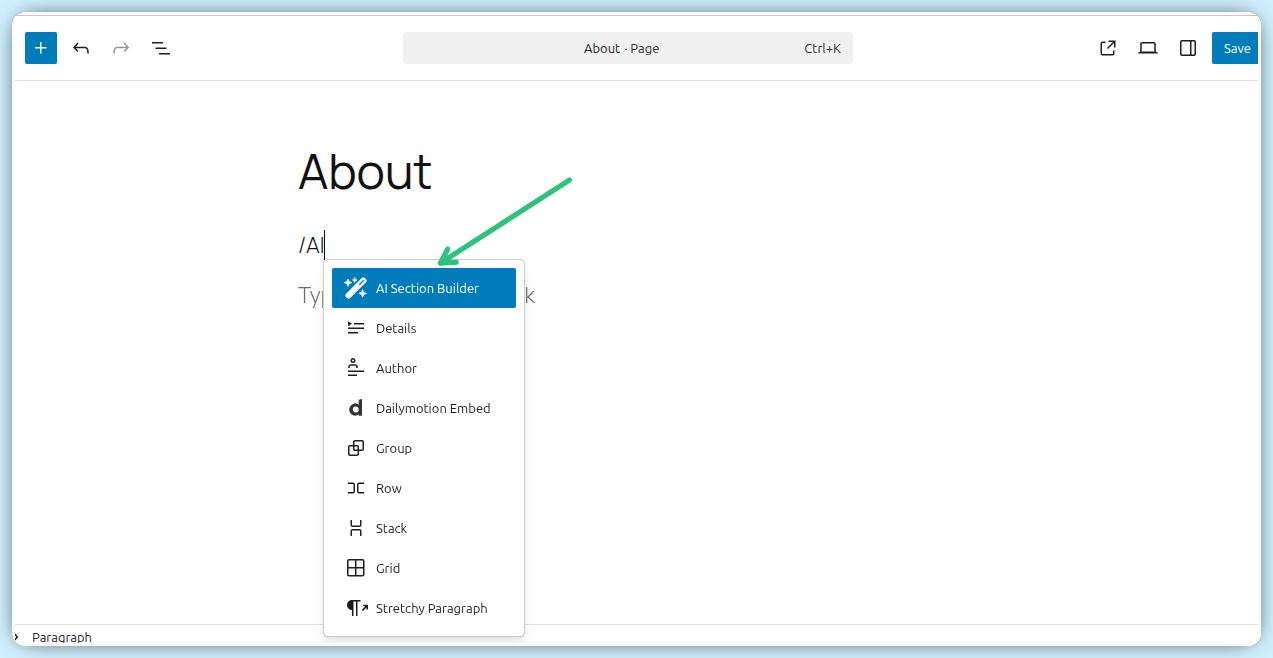
Select the AI Section Builder block from the list.
Open any page or post in the WordPress editor.
Add a new block by typing: /AI Section Builder
5. Generate a Section
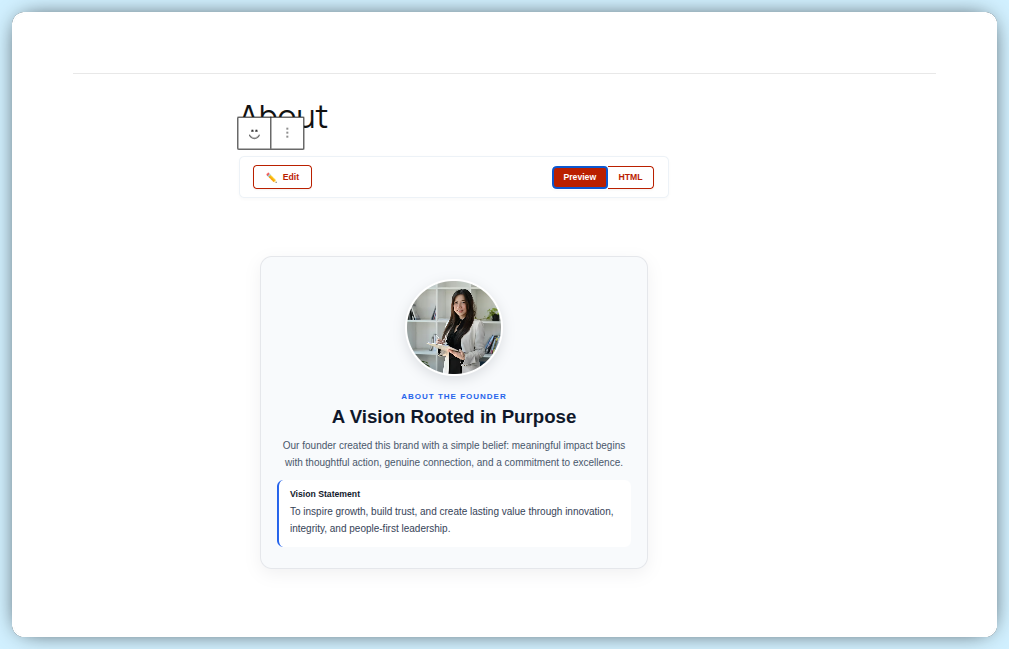
The AI will automatically generate a designed section based on your input.
Enter your prompt describing the section you want to create.
Click on Generate Section.
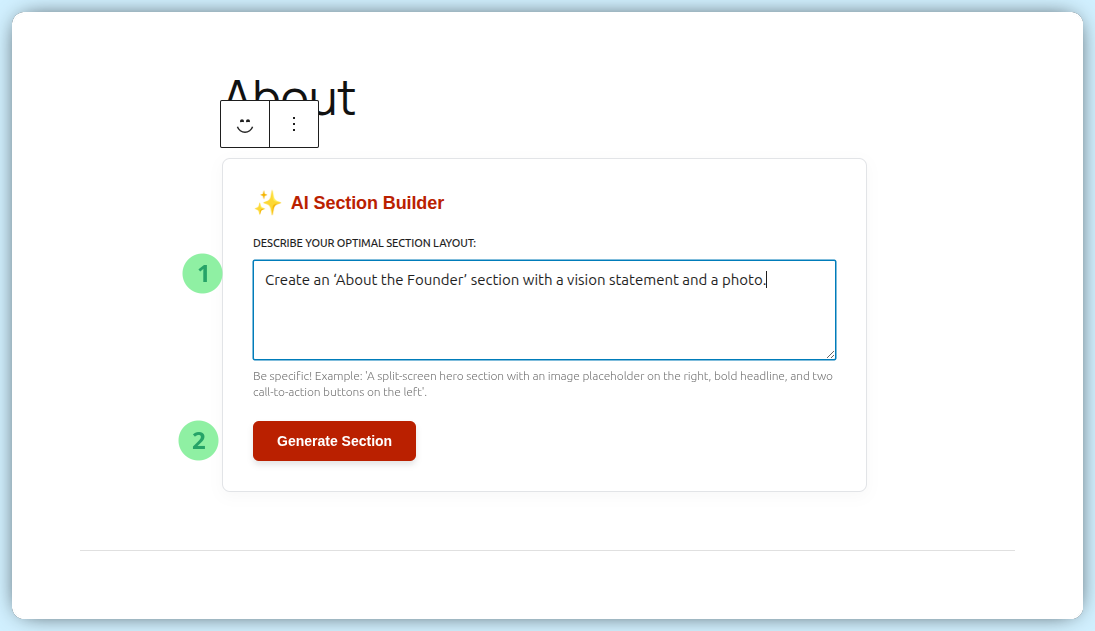
6. Edit Generated Content
- Edit Text:
Click directly on any text element and modify it as needed. - Replace Images:
Hover over an image, click the Replace Image icon, and select a new image from the WordPress Media.
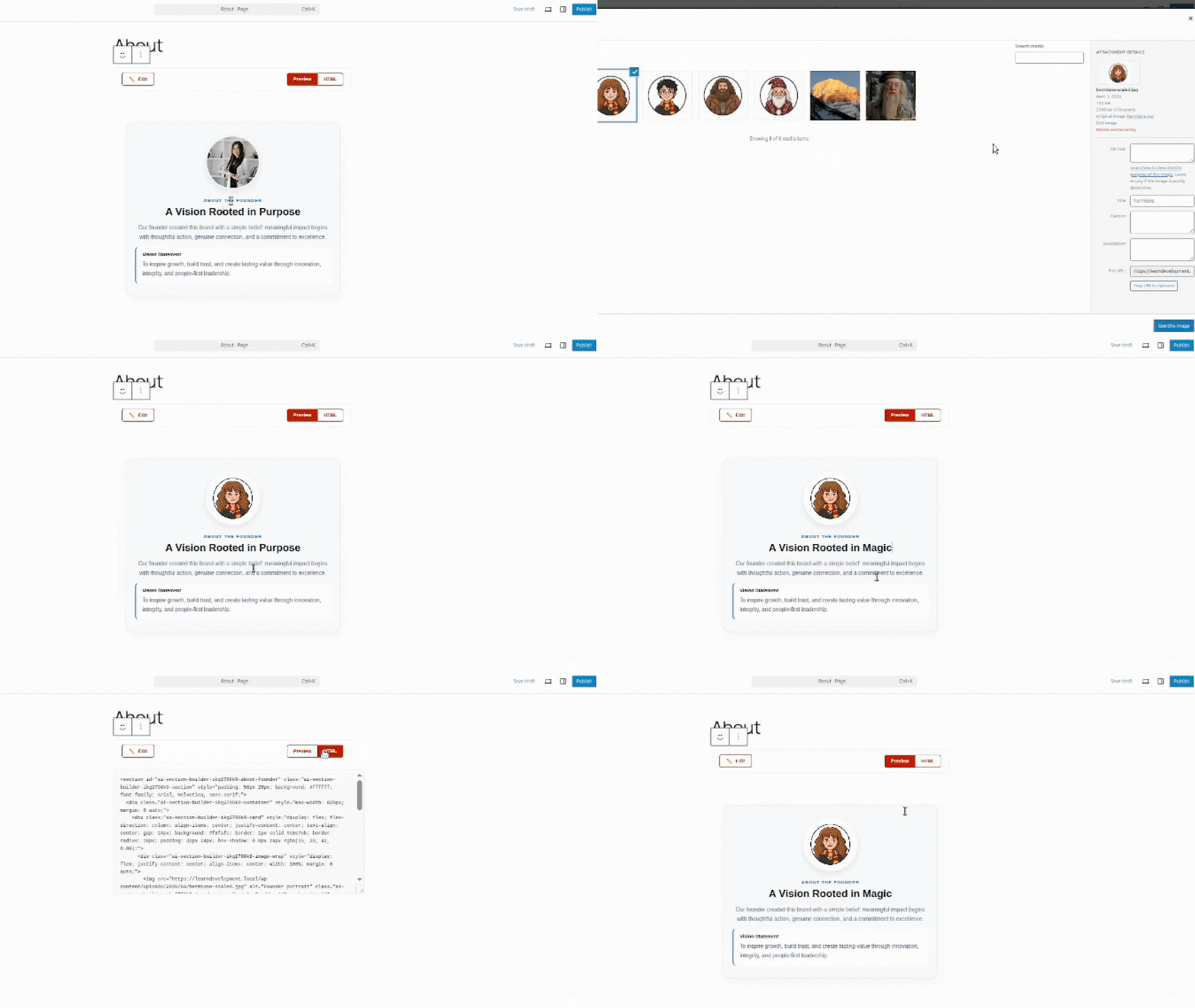
7. Modify Section Using AI
You can refine or update the generated section using prompts:
- Click the Edit button within the block.
- Enter a new instruction.
- Example: “Change the section to a dark theme with modern typography.”
- Apply the changes to regenerate the section.
8. Publish Your Page
Once you are satisfied with the design:
- Click Publish (or Update).
- View the page on the frontend to see the final result.