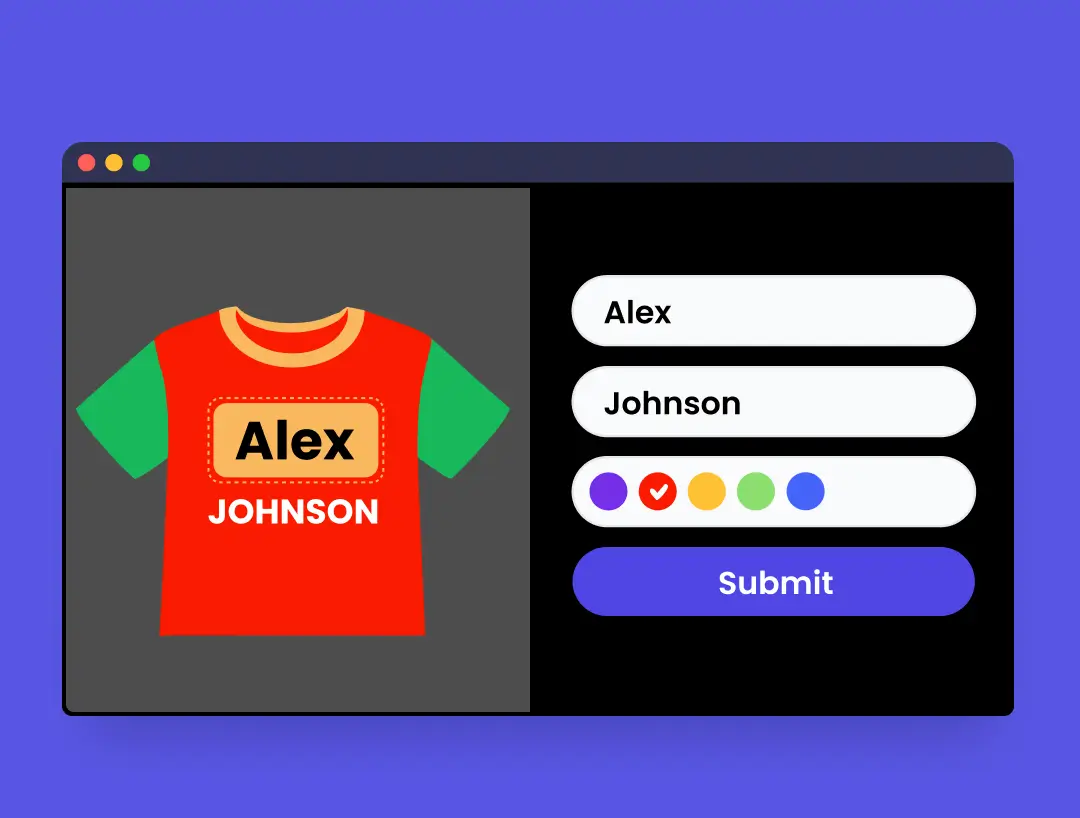
How to Let Customers Upload Their image/Design

This guide shows site admins how to let customers upload their own image (for example a company logo, personal photo, or custom artwork) and preview it on a T-shirt using Image Configurator for Gravity Forms.

Why This Is Useful

Allowing user uploads is helpful when you want customers to personalize products, such as:

  • Printing a company logo on staff uniforms
  • Uploading a custom design for events or teams
  • Adding a personal photo for gifts or merchandise

In this tutorial, we will build a customized T-shirt form where users:

  1. Select a T-shirt color
  2. Upload their own PNG design
  3. See that design appear in the configured position on the shirt preview

Before You Start

  • Gravity Forms is installed and active
  • Image Configurator for Gravity Forms is installed and active
  • You have at least one T-shirt base image per color (for example: blue shirt, black shirt, white shirt)

Step 1: Add a Color Radio Field

  1. Open your form in the Gravity Forms form editor.
  2. Add a Radio Buttons field.
  3. Label it something like: `T-Shirt Color`.
  4. Add choices for each color (example: `Blue`, `Yellow`, `White`).

This field will control which shirt base image is shown in the configurator.

Step 2: Add the Image Configurator Field

  1. Add the Image Configurator field to the same form.
  2. Open Image Configurator settings.

This is the preview area where the shirt and user design will be composited.

Step 3: Map the Color Field and Add T-Shirt Base Layer

  1. In Image Configurator settings, add a new layer.
  2. Set the source field to your `T-Shirt Color` radio field.
  3. For each color choice, assign the matching T-shirt base image:
  • `Blue` -> blue shirt image
  • `Yellow` -> black shirt image
  • `White` -> white shirt image
  1. Save layer settings.

Now, when users change color, the base shirt preview updates.

Step 4: Add a File Upload Field for User Design

  1. Add a File Upload field to the form.
  2. Label it something like: `Upload Your Design`.
  3. (Recommended) Restrict allowed file types to `png` only.

This field is where users upload their logo or custom artwork.

Step 5: Add the File Upload Field as a Configurator Layer

  1. Go back to Image Configurator layer settings.
  2. Add a new layer and select the File Upload field as the source.
  3. Configure the uploaded design layer:
    • Position (X, Y)
    • Size / Alignment area
    • Opacity
    • Fit mode (`contain` or `cover`)
  4. Save the layer.

Tip:

  • Use `contain` when you want the full uploaded logo/photo to remain visible.
  • Use `cover` when you want the upload box fully filled, even if some cropping happens.

Step 6: Test on the Frontend

  1. Open the page containing your form.
  2. Select a T-shirt color.
  3. Upload a PNG image in `Upload Your Design`.
  4. Confirm the image appears in the correct area of the shirt preview.

Expected result:

  • Shirt base changes with color choice
  • Uploaded image appears in the configured location
  • Opacity and fit mode behave as configured

Troubleshooting

If the uploaded design does not appear:

  • Confirm the File Upload field is added as a layer source in Image Configurator
  • Confirm layer order is correct (design layer should be above shirt base layer)
  • Confirm allowed file type includes PNG
  • Refresh and retest after saving all layer settings

Outcome

You now have a T-shirt customization form where customers can choose shirt color and upload their own image for print preview directly in your Gravity Forms workflow.

The generated preview can also be:

  • Included in confirmation emails sent to the customer and admin
  • Viewed later from the entry details screen in the Gravity Forms dashboard